
Watching television on Amazon Firestick is a convenient way to enjoy internet-based entertainment on your TV. With the right compatible IPTV player, users can access their subscribed live TV channels and on-demand content through a simple setup process.
In this guide, we explain how to prepare your Firestick, install a compatible IPTV player, configure your Sky Glass IPTV 4K subscription, and troubleshoot common streaming problems. Whether you are new to IPTV or looking to improve your existing setup, these steps will help you get started.
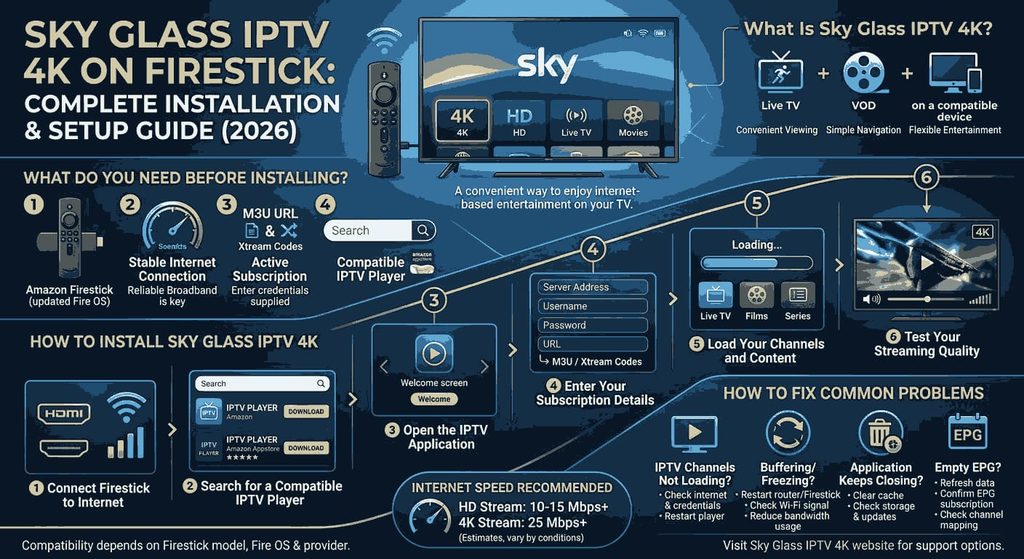
What Is Sky Glass IPTV 4K?
Sky Glass IPTV 4K is an internet-based television streaming service designed for viewers looking for live TV, sports, movies, and entertainment on compatible devices.
Depending on your subscription and the content available, the service may provide access to live channels and video-on-demand (VOD) content through a compatible IPTV application.
The main benefits of using a compatible Firestick setup include:
– Convenient viewing:
Watch supported content directly on your television.
– Simple navigation:
Use your Firestick remote to browse compatible IPTV applications.
– Flexible entertainment:
Access supported live channels and on-demand programmes in one interface.
– Device convenience:
Keep your streaming applications together on one device.
– Flexible installation:
Choose a compatible IPTV player based on your provider’s instructions.
Actual channel availability, video quality, and playback performance depend on your subscription, device, internet connection, and content rights.
What Do You Need Before Installing Sky Glass IPTV 4K?
Before starting the installation, make sure you have everything ready.
1. An Amazon Firestick
You need a compatible Amazon Fire TV Stick connected to your television. Make sure the device has enough available storage and is running an up-to-date version of Fire OS.
2. A Stable Internet Connection
Your Firestick needs an active internet connection to stream online content. A reliable broadband connection is more important than speed alone because Wi-Fi interference, network congestion, and server performance can also affect playback.
3. An Active Subscription
If you plan to use Sky Glass IPTV 4K, obtain your subscription details directly from your provider. Depending on the service, these details may include an M3U playlist URL or Xtream Codes login information.
Only enter credentials supplied for your own subscription.
4. A Compatible IPTV Player
An IPTV subscription does not necessarily include its own application. You may need a compatible IPTV player that supports the login method provided by your service.
Check the application’s features, supported login formats, pricing, and privacy information before installing it.
How to Install Sky Glass IPTV 4K on Firestick
Follow these steps to prepare your device and configure a compatible IPTV application.
Step 1: Connect Your Firestick to the Internet
Connect your Firestick to an HDMI port on your television and select the correct HDMI input.
Follow the on-screen instructions to connect your device to your Wi-Fi network. If possible, place your router close enough to provide a strong and stable signal.
Next, check for Fire OS updates under your device’s settings.
Step 2: Search for a Compatible IPTV Player
From the Firestick home screen, open the Find or search section.
Search for an IPTV player that is compatible with your device and supports the login format supplied by your provider.
Review the app description and install it from the official Amazon Appstore when available. Some IPTV players are free, while others require a purchase or activation fee.
Remember that an IPTV player is software for accessing playlists or subscription services; installing a player does not automatically provide TV channels.
Step 3: Open the IPTV Application
Once installation is complete, open the application.
Some players display a welcome screen, while others ask you to add a playlist or connect an account. Follow the instructions shown inside the application.
You may need to accept the application’s terms or complete its initial configuration.
Step 4: Enter Your Subscription Details
Choose the connection option supported by your provider and IPTV player.
Common options include:
– Xtream Codes API:
Usually requires a server address, username, and password.
– M3U playlist:
Uses a playlist URL supplied by the provider.
– Portal connection:
Supported applications and set-top-box systems may use a portal URL or device-specific activation method.
Enter the details exactly as provided. A missing character, extra space, incorrect server address, or expired subscription can prevent a successful connection.
Do not share your login credentials publicly.
Step 5: Load Your Channels and Content
After entering the correct details, save your configuration and allow the application to load the available content.
Depending on your subscription and player, you may see categories such as live TV, films, TV series, or an electronic programme guide (EPG).
If the categories do not appear immediately, check your login information and internet connection. Some applications also provide a refresh or reload option.
Step 6: Test Your Streaming Quality
Open a channel or programme you are authorised to watch and allow it to load.
Check that playback is stable, the audio is working, and the picture quality is suitable for your television.
If the application provides video-quality settings, select a setting supported by both your device and internet connection. A 4K-capable television alone does not guarantee that every stream will be available in 4K.
How to Fix Common Sky Glass IPTV 4K Firestick Problems
Even when installation is correct, occasional technical problems can occur. The following solutions can help identify common causes.
IPTV Channels Are Not Loading
If your channels do not appear, check that your subscription is active and your login details are correct.
Restart the IPTV player and confirm that the Firestick is connected to the internet. If the problem continues, contact your provider to check whether the service or server is experiencing an issue.
Buffering or Freezing During Playback
Buffering can result from weak Wi-Fi, network congestion, device performance, or problems with the streaming source.
Try these steps:
1. Restart your router and Firestick.
2. Move the Firestick or router to improve the Wi-Fi signal.
3. Pause downloads and other activities that use significant bandwidth.
4. Close applications you are not using.
5. Test another authorised channel to determine whether the issue affects one stream or several.
Avoid assuming that every buffering issue is caused by your internet speed.
The IPTV Application Keeps Closing
Check whether your Firestick has sufficient storage and whether the application and Fire OS are up to date.
You can also try clearing the application’s cache under Settings > Applications > Manage Installed Applications, then select the relevant app and choose the available cache-clearing option.
Be careful when selecting options that clear app data, because these may remove saved settings or login information.
The Electronic Programme Guide Is Empty
An electronic programme guide displays programme schedules when compatible data is available.
If your EPG is blank or incomplete, check whether the IPTV player has an option to refresh programme information. Also confirm that your subscription supplies EPG data and that the relevant channels are mapped correctly.
Some programme listings may be missing or inaccurate even when live channels work normally.
What Internet Speed Is Recommended for IPTV on Firestick?
The best connection depends on the stream’s resolution, compression, and stability. As a general starting point, a connection of around 10–15 Mbps for a single HD stream and 25 Mbps or more for a 4K stream may be sufficient under favourable conditions.
These are estimates, not guarantees. Other devices using your network, Wi-Fi interference, and the performance of the streaming source can affect the result.
For a better experience, use a reliable broadband connection, keep your router’s firmware updated, and avoid placing your Firestick where the wireless signal is weak.
Is Sky Glass IPTV 4K Compatible with Every Firestick?
Compatibility depends on the Firestick model, Fire OS version, IPTV player, and provider’s requirements.
Before subscribing or installing an application, verify that your particular device supports the required software and connection method.
If an application is unavailable in your region’s official app store, do not assume that every alternative download is safe. Only use trusted sources and check the application’s authenticity before installation.
Also, ensure that the channels and on-demand content you access are authorised for distribution in your location.
Frequently Asked Questions
1. Can I use Sky Glass IPTV 4K on Amazon Firestick?
A compatible IPTV player can be used to access a supported subscription on Firestick, provided the service and application support your device and login method.
2. Do I need an IPTV application?
Usually, yes. You generally need a compatible player to load a playlist or connect to your subscription unless your provider supplies a different supported application.
3. Why is my IPTV buffering on Firestick?
Common causes include unstable Wi-Fi, network congestion, limited device resources, or problems with the streaming source. Restarting your equipment and testing another stream can help identify the cause.
4. Can I watch 4K content on Firestick?
Some Firestick models support 4K playback. You also need a compatible television, a suitable stream, and enough stable bandwidth. Not every channel or programme is available in 4K.
5. Do I need a VPN for Sky Glass IPTV 4K?
A VPN is not universally required for IPTV. Whether you use one depends on your privacy needs, local laws, provider requirements, and network configuration. A VPN does not guarantee better streaming performance.
6. What should I do if my subscription stops working?
Confirm that your subscription has not expired, check your internet connection, and verify your login details. If these steps do not help, contact your provider’s support team.
Final Thoughts
Setting up Sky Glass IPTV 4K on Firestick involves connecting your device to the internet, installing a compatible IPTV player, entering your subscription details, and testing playback.
By following this guide, you can understand the installation process and troubleshoot common problems without making unnecessary changes to your device.
For the best results, keep your Firestick updated, use trusted applications, maintain a stable internet connection, and verify that your subscription supports the content you want to watch.
If you need help with a compatible setup or subscription questions, visit the Sky Glass IPTV 4K website and contact the support team for assistance.
Ready to learn more? Visit Sky Glass IPTV 4K to explore the available subscription information, device setup guides, and support options.