
Introduction
Amazon Firestick is a popular choice for watching internet-based entertainment on a television. Its compact design, simple interface, and compatibility with many streaming applications make it convenient for viewers who want to enjoy digital entertainment at home.
If you want to use Sky Glass IPTV 4K on Firestick, this guide explains how to prepare your device, install a compatible IPTV player, configure your playlist, and troubleshoot common setup issues. Whether you are a beginner or an experienced streaming user, following these steps can help you get started.
Sky Glass IPTV 4K aims to bring live television and on-demand entertainment together in one convenient viewing experience, subject to your subscription, device compatibility, and the content available through your service.
What Do You Need Before Installing IPTV on Firestick?
Before starting the installation process, make sure you have the following:
– Amazon Firestick:
A compatible Fire TV Stick connected to your television.
– Internet connection:
A stable Wi-Fi connection for downloading applications and streaming content.
– Amazon account:
An account may be required to access the Amazon Appstore.
– Compatible IPTV player:
An application that supports your provider’s playlist or login format.
– Subscription or playlist details:
Valid access credentials and the correct server information from your authorised provider.
For the best experience, keep your Firestick software updated and make sure you have enough available storage to install the required application.
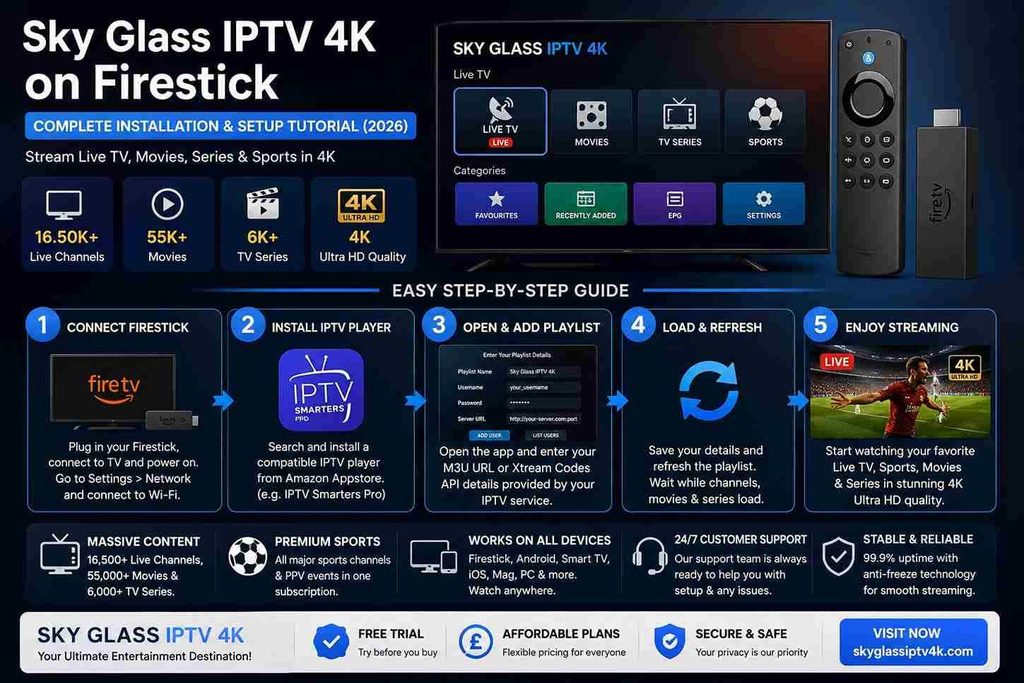
Step 1: Connect Your Firestick to the Internet
First, connect your Firestick to your television using an available HDMI port. Connect the power adapter and switch on your television.
Select the correct HDMI input to display the Fire TV home screen.
Next, follow these instructions:
1. Open Settings on your Firestick.
2. Select Network.
3. Choose your Wi-Fi network.
4. Enter your Wi-Fi password.
5. Confirm that the device is connected to the internet.
A reliable connection is important for downloading applications, loading playlists, and playing video content smoothly.
Step 2: Install a Compatible IPTV Player
To access IPTV playlists, you generally need a compatible media player. The player and the IPTV subscription are separate products: installing a player does not automatically provide television channels or a content subscription.
Follow these steps:
1. Open the Firestick home screen.
2. Select the Find or search option.
3. Search for a compatible IPTV player available in the Amazon Appstore.
4. Check its compatibility, developer information, features, and pricing.
5. Select the application and choose Download or Get.
6. Wait for installation to finish.
7. Open the application.
Choose a player that supports the playlist format or login method supplied by your authorised IPTV provider. App availability can vary by country and device model.
Step 3: Open the IPTV Player and Add Your Details
Once the player has been installed, open it and follow the instructions displayed on the screen.
Depending on the application, you may be asked to enter one of the following:
– An M3U playlist URL
– An Xtream Codes-compatible username, password, and server URL
– A playlist activation code or other supported connection details
Enter the information exactly as provided by your authorised service provider. Check for spelling mistakes, extra spaces, and incorrect characters before saving your details.
Some applications may require activation or a paid licence. Follow the application’s official instructions if payment or device registration is necessary.
Important: Never share your password or private activation details publicly. Only use services and streams that you are authorised to access.
Step 4: Load Your Playlist and Refresh the App
After entering your details, save the configuration and allow the application to process the playlist.
Depending on the player, you may see sections such as:
– Live TV
– Movies
– TV series
– Favourites
– Electronic Programme Guide (EPG)
The sections available depend on your player and the content supplied by your provider. If the channels or programme information do not appear immediately, use the application’s refresh, reload, or update-playlist option.
If the playlist fails to load, confirm that your subscription is active and that your connection details are correct.
Step 5: Test Your Streaming Experience
Once your playlist has loaded successfully, open a channel or video that you are authorised to watch.
Check whether the video starts correctly, the sound works, and navigation responds as expected. If your player supports different video-quality settings, choose an option appropriate for your television and internet connection.
For improved performance, keep your Firestick software and IPTV player updated. You can also restart the device if the application becomes unresponsive.
Actual streaming quality depends on several factors, including your internet connection, device performance, provider infrastructure, and the source video quality.
How to Fix Common IPTV Problems on Firestick
Even after a successful installation, you may occasionally encounter technical issues. Here are some practical solutions.
IPTV Channels Are Not Loading
Check your internet connection and verify that your playlist URL or login information is correct. Confirm that your subscription is active and refresh the playlist.
IPTV Buffering or Freezing
Restart your router and Firestick. Move your device closer to the Wi-Fi router, reduce other heavy internet activity, or use a compatible Ethernet adapter if available.
The IPTV App Keeps Crashing
Restart your Firestick and check for application updates. If the problem continues, go to Settings > Applications > Manage Installed Applications, select the affected app, and consider clearing its cache.
Avoid selecting Clear Data unless you are prepared to configure the application again, as this can remove saved settings and login details.
The IPTV Player Cannot Connect
Check the provider’s server address and account details. If everything appears correct, contact your provider to determine whether there is a service-side problem.
Tips for a Better IPTV Experience on Firestick
For more reliable everyday use, follow these recommendations:
– Keep Fire OS and your IPTV player updated.
– Use a stable Wi-Fi network or a compatible wired connection.
– Close applications you are not using if performance is poor.
– Review the IPTV player’s privacy permissions and subscription terms.
– Avoid downloading applications from unverified websites.
– Contact support if you experience repeated login or playlist errors.
There is no universal internet-speed requirement for every IPTV service. Higher-resolution streams generally require more bandwidth, while Wi-Fi interference and network congestion can affect performance even when your advertised internet speed is high.
Frequently Asked Questions
Can I use Sky Glass IPTV 4K on Amazon Firestick?
You can use a compatible IPTV player on a supported Firestick when the application, playlist, and service are compatible with your device. Confirm the supported devices and setup requirements with your provider.
Do I need an IPTV player to watch IPTV on Firestick?
In most cases, yes. An IPTV player loads compatible playlists or account details, while the provider supplies the content access. Some services may offer their own dedicated application.
Why is my IPTV playlist not working?
Common causes include an expired subscription, an incorrect playlist URL, invalid login details, network issues, or a temporary server problem.
Can I install IPTV apps using Downloader?
Some applications offer installation packages through official distribution channels. However, availability and installation methods vary. Prefer the Amazon Appstore or the application’s verified official source, and avoid unknown or untrusted downloads.
Does a Firestick installation guarantee 4K streaming?
No. 4K playback depends on the video source, the application, the Firestick model, your television, your internet connection, and your provider’s supported stream quality.
Conclusion
Setting up Sky Glass IPTV 4K on Firestick involves connecting your device to the internet, installing a compatible IPTV player, entering your authorised playlist details, and checking that the content loads correctly.
By following this step-by-step installation guide and applying the troubleshooting tips above, you can make the setup process easier and identify common problems more quickly.
For further assistance with compatible devices, playlist configuration, or subscription questions, visit the Sky Glass IPTV 4K Help & Support page or contact the support team.
Choose applications and streaming services that are compatible with your device and authorised to distribute the content you watch.